Technical Support
This guide shows low-level communication examples for technical support engineers using the FlexConnect API.
Preparations
- Launch the development client as described in the FlexConnect API User Guide — First Steps.
- Navigate to
http://localhost:8080/ui.
Field Definitions
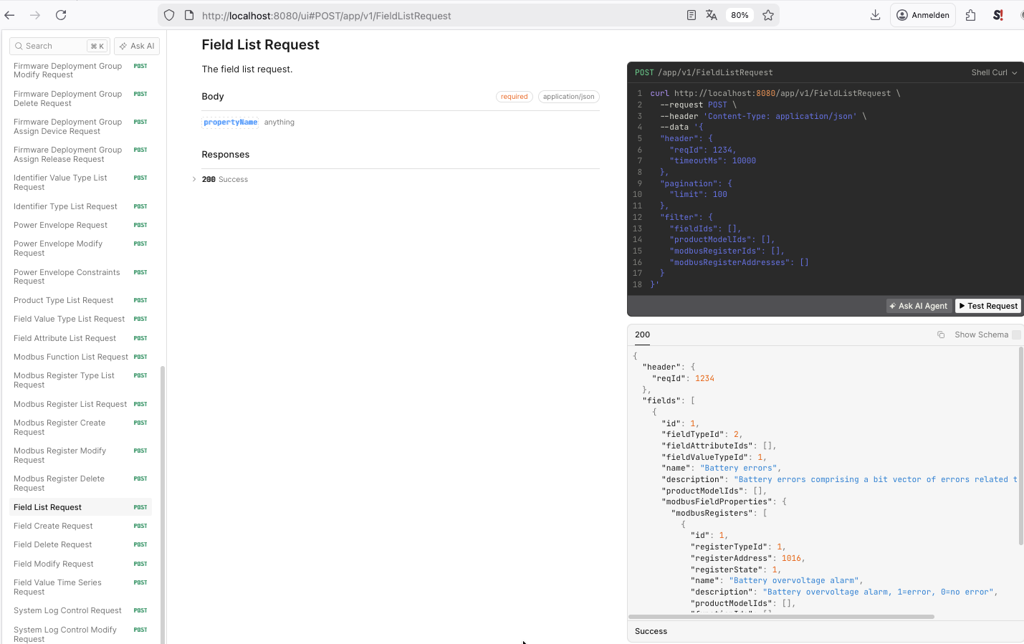
Field List Request
List the field definitions associated with your product.
- Select the documentation for Field List Request in the left pane of the page.
- Click Test Request on the right pane where the documentation shows the request.
- Click Send.
- The response body contains all field definitions associated with your product.
TIP
Filter the list by the Modbus register addresses you are interested in.
System Field Logging
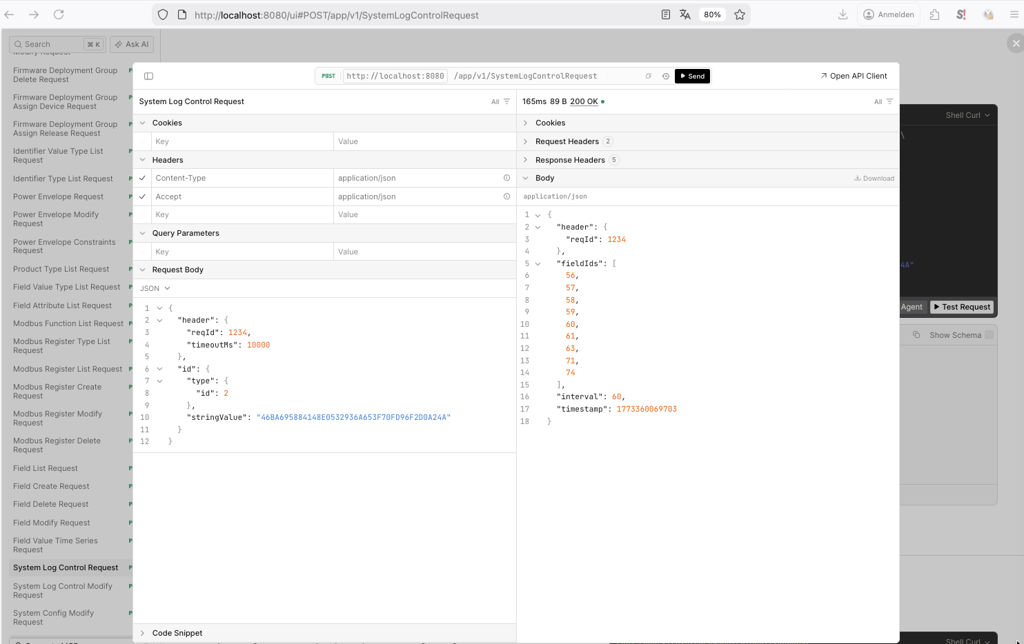
System Log Control Request
Show the current system field log configuration of a device.
- Select the documentation for System Log Control Request in the left pane of the page.
- Click Test Request on the right pane where the documentation shows the request.
- Specify the SKI identifier in the
stringValueof theidattribute in the request. - Click Send. The response body contains:
- The field IDs for which values are logged.
- The interval (in seconds) at which they are logged.
- The point in time from which they are logged, given by
timestamp(milliseconds since epoch).
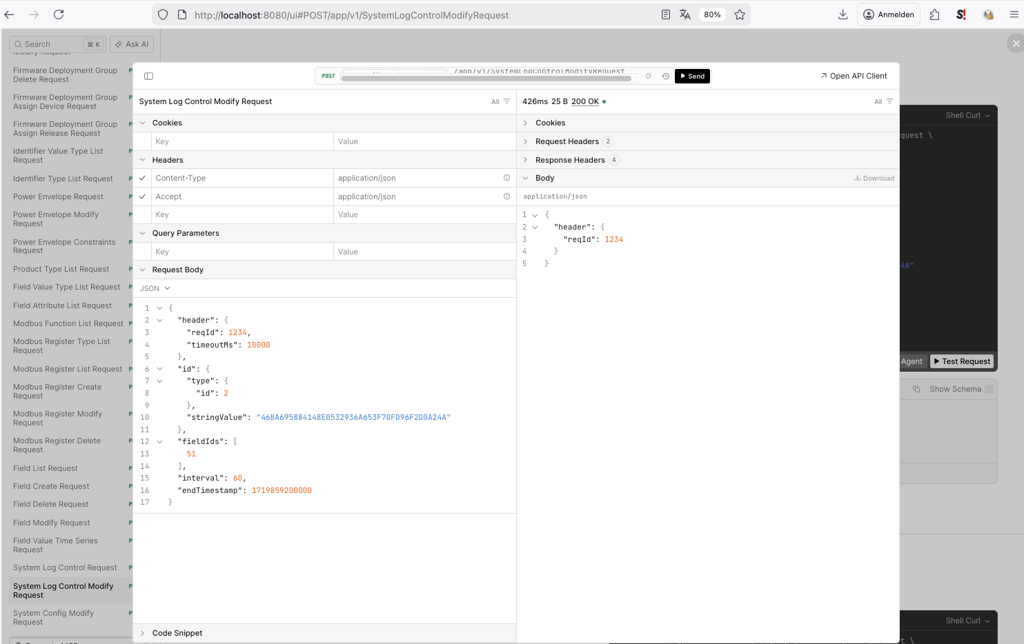
System Log Control Modify Request
Change the logging configuration for a device.
- Select the documentation for System Log Control Modify Request in the left pane of the page.
- Click Test Request on the right pane where the documentation shows the request.
- Specify the following:
- SKI identifier in the
stringValueof theidattribute in the request. - Field IDs of the fields to be obtained, in the
fieldIdsattribute. - Interval in seconds, in the
intervalattribute. endTimestampin milliseconds, indicating when logging is supposed to be stopped.
- SKI identifier in the
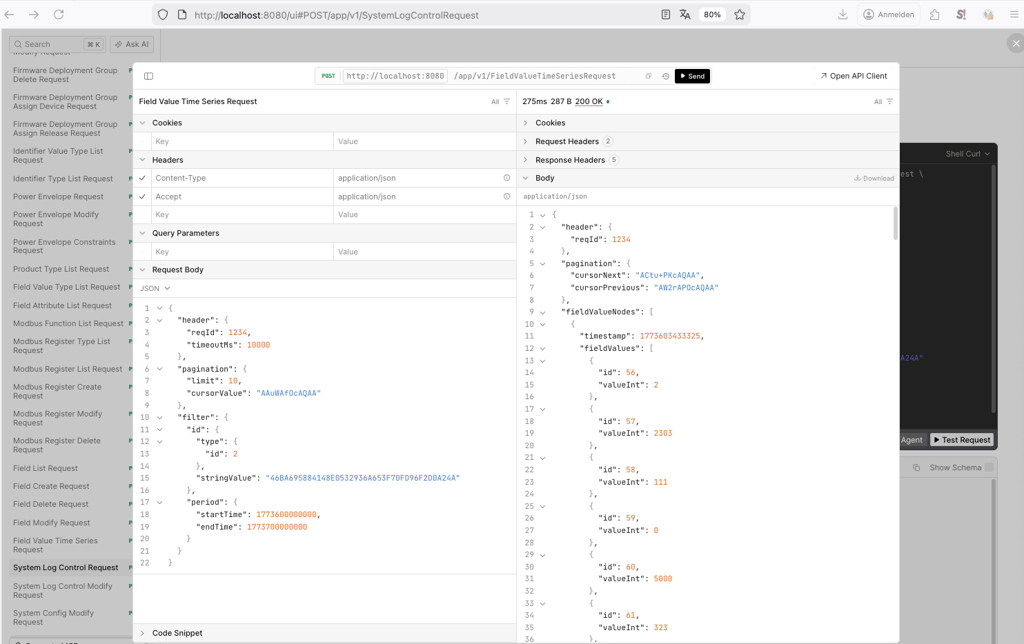
Field Value Time Series Request
Obtain the low-level system field data collected from the device.
- Select the documentation for Field Value Time Series Request in the left pane of the page.
- Click Test Request on the right pane where the documentation shows the request.
- Specify the following:
- Pagination limit for the number of rows to retrieve.
- Pagination
cursorValueif iterating through large result sets. - SKI identifier in the
stringValueof theidattribute of the filter in the request. startTimeandendTimein theperiodattribute.
Pagination
The response includes cursorPrevious and cursorNext values when the result set contains more elements than the limit allows. This enables you to iterate backwards and forwards through large result sets.
System Config
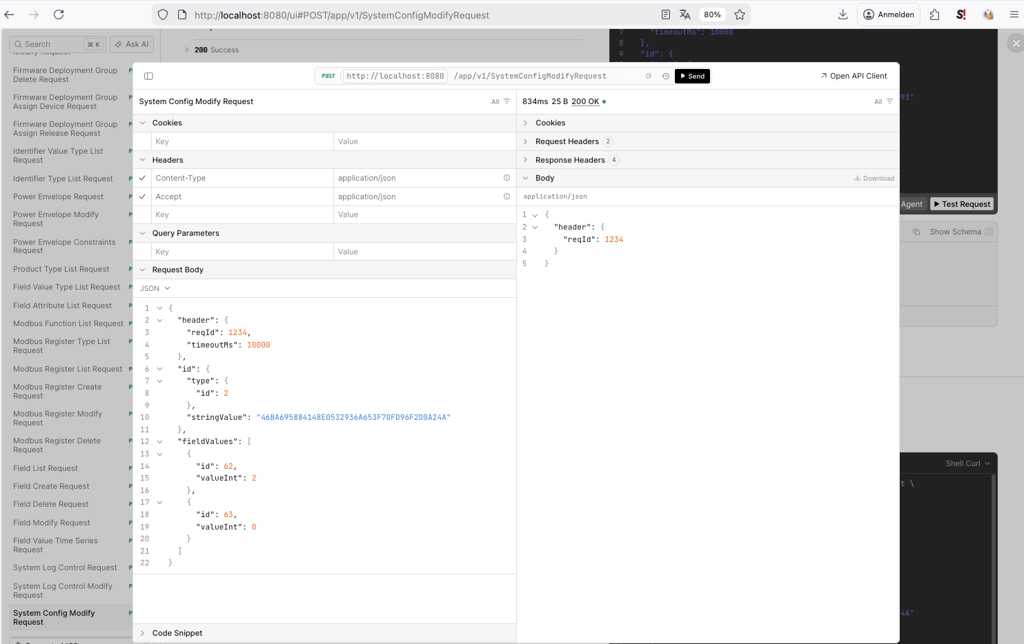
System Config Modify Request
Change the low-level configuration of a device by modifying field values — for example, to charge or discharge a battery.
- Select the documentation for System Config Modify Request in the left pane of the page.
- Click Test Request on the right pane where the documentation shows the request.
- Specify the following:
- SKI identifier in the
stringValueof theidattribute in the request. - The field values to set in the
fieldValuesattribute (see examples below).
- SKI identifier in the
Example — Discharge a battery with 400 W
| Field ID | Description | Value |
|---|---|---|
| 62 | Set battery operation mode | 3 (control) |
| 63 | Set grid power | 400 (discharge with 400 W) |
Example — Set a battery to idle
| Field ID | Description | Value |
|---|---|---|
| 62 | Set battery operation mode | 2 (idle) |
| 63 | Set grid power | 0 |